How to Enable Developer Mode on Meta Quest
Before you can sideload apps, use the Meta Quest Developer Hub, or run tools like the KAT Gateway on a standalone Quest, you need one thing turned on: Developer Mode. The whole process takes about five minutes and doesn't require writing a single line of code.
Step 1: Set up your developer organization
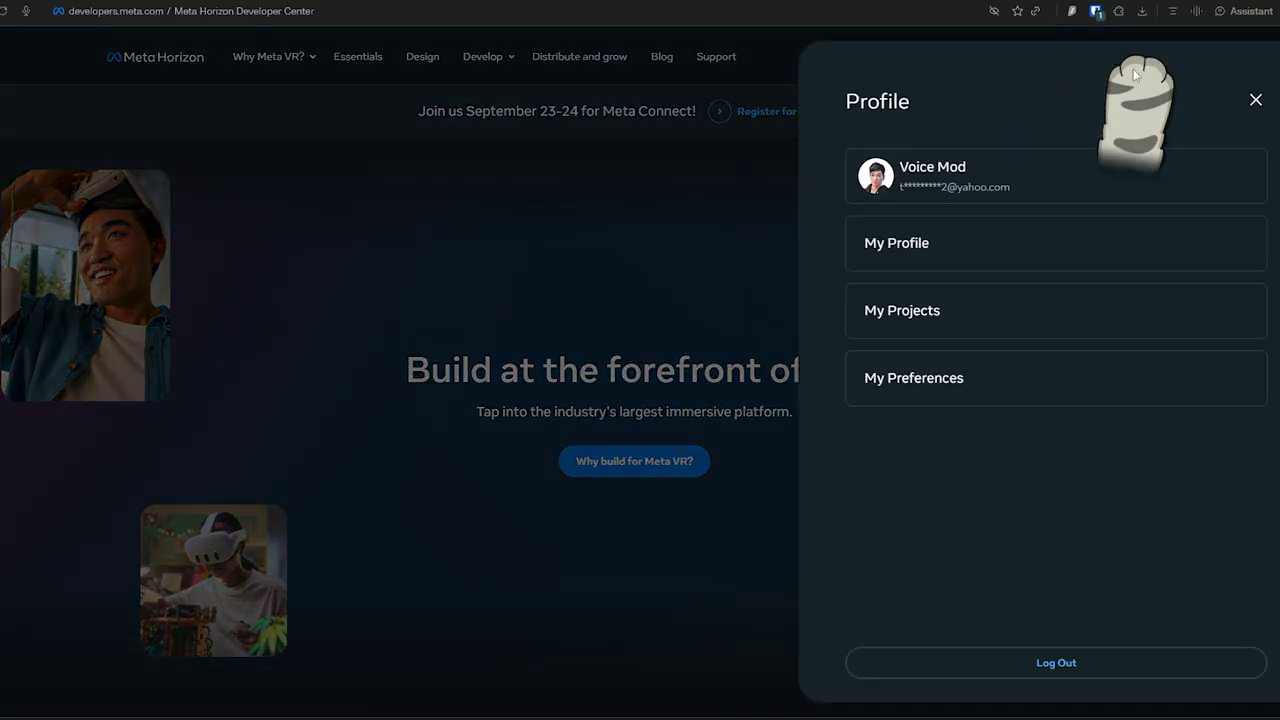
Go to developers.meta.com/horizon and log in with your Meta account. Click your profile icon, then My Projects.
Step 2: Verify your account
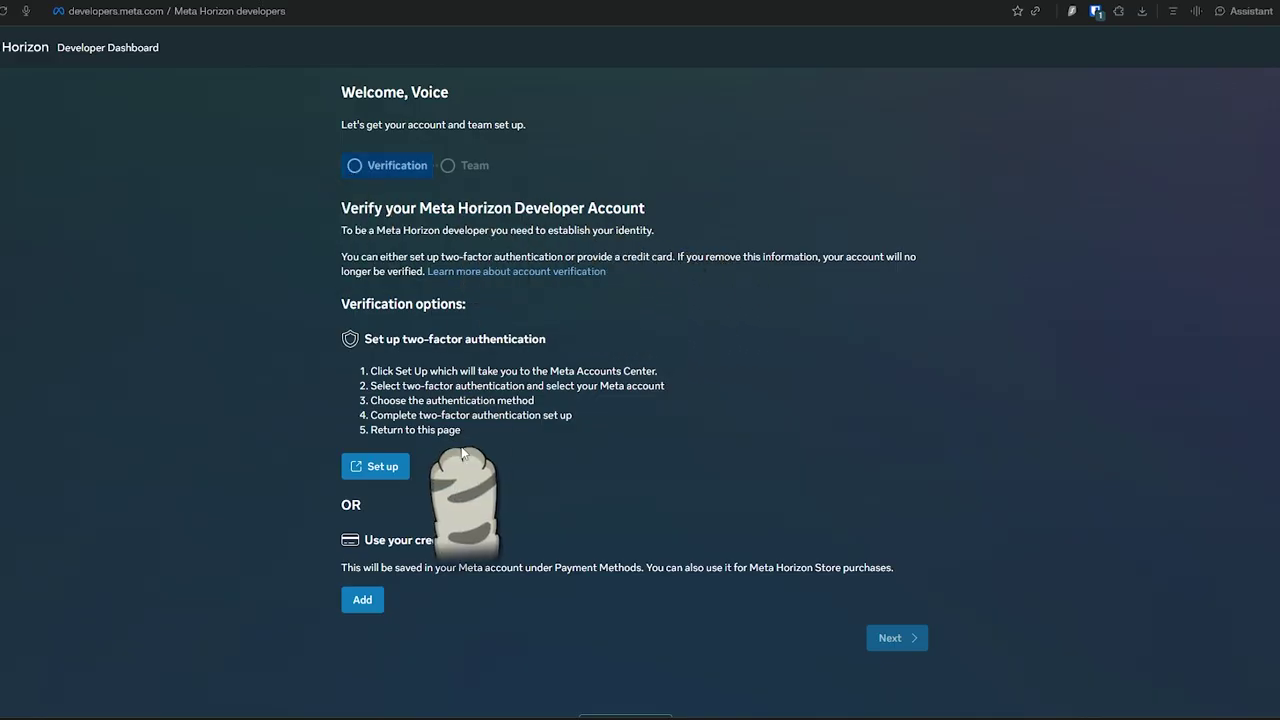
Meta may ask you to verify. You only need to do one of these: turn on two-factor authentication, or add a credit card. It's one or the other, not both.
Step 3: Create the organization
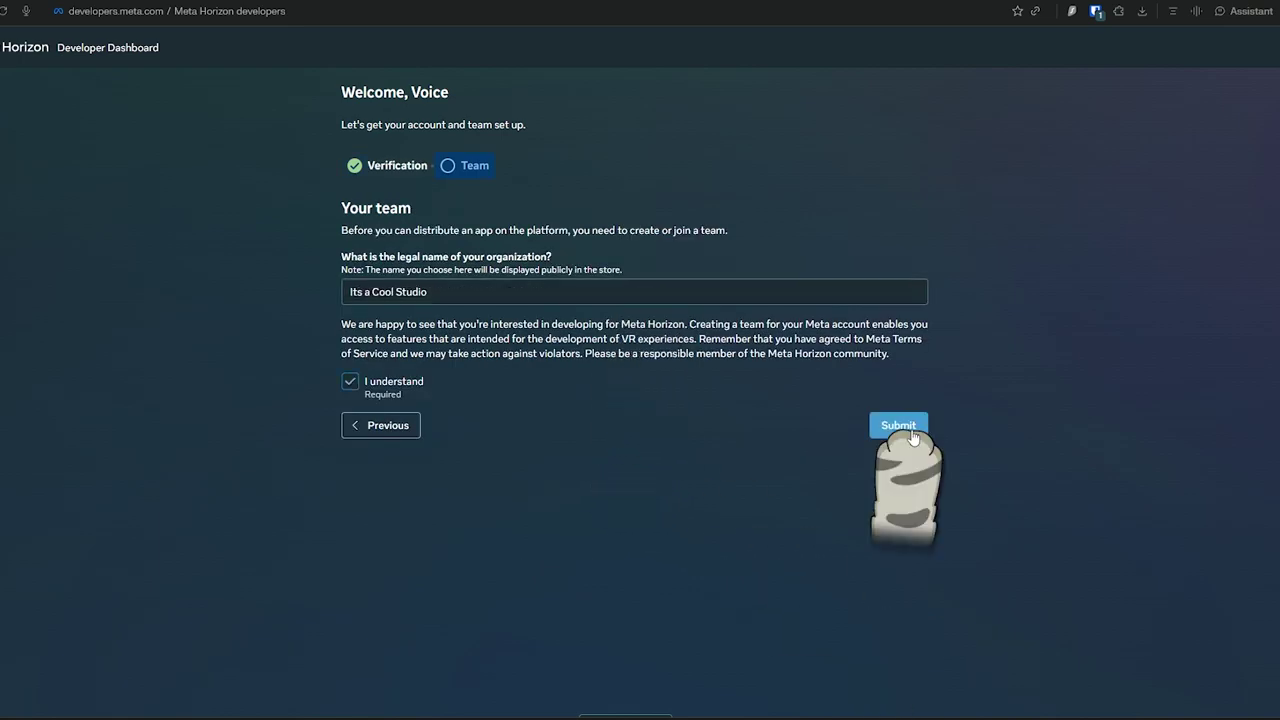
Once you're verified, go back to that same page and hit Next. Give your organization any name you want, accept the agreements, and you'll land in the developer dashboard.
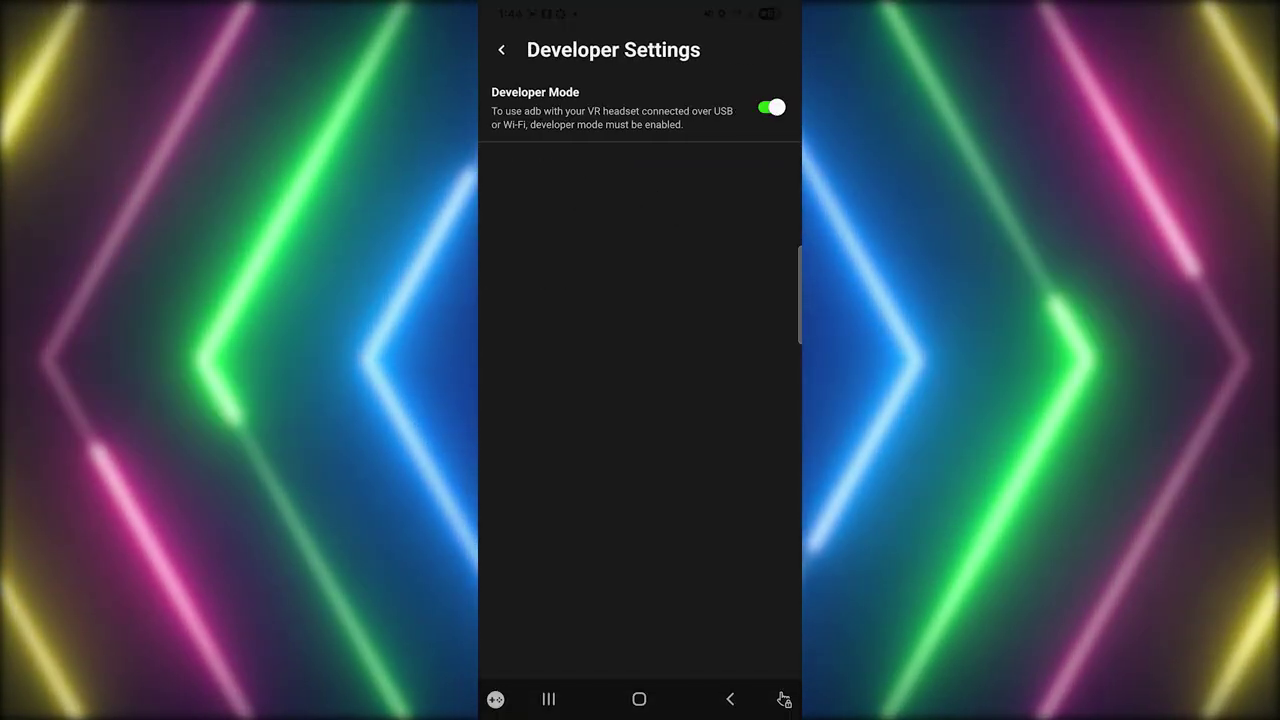
Step 4: Toggle Dev Mode On In The Meta Horizon App
Turn on your headset and open the Meta Horizon app on your phone. Tap the three lines in the top left, go to Devices, select your Quest, then Headset Settings. You'll see Developer Mode. Toggle it on. You may need to restart your headset before the additional features show up.
If you're connecting to a PC
You'll probably see a prompt asking about USB debugging access. Select "always allow from this computer" so you don't have to approve it every time.
Windows users: you might need additional ADB drivers for your PC. Install them only if SideQuest, Quest Games Optimizer, MQDH, or adb devices can't detect your Quest.
That's it. Developer Mode is on. If you're working on growing a VR channel as a content creator, my course VR Content Lab teaches exactly that! You can sign up and find more details here.
As always, keep on creating, and never lose that drive to improve!
